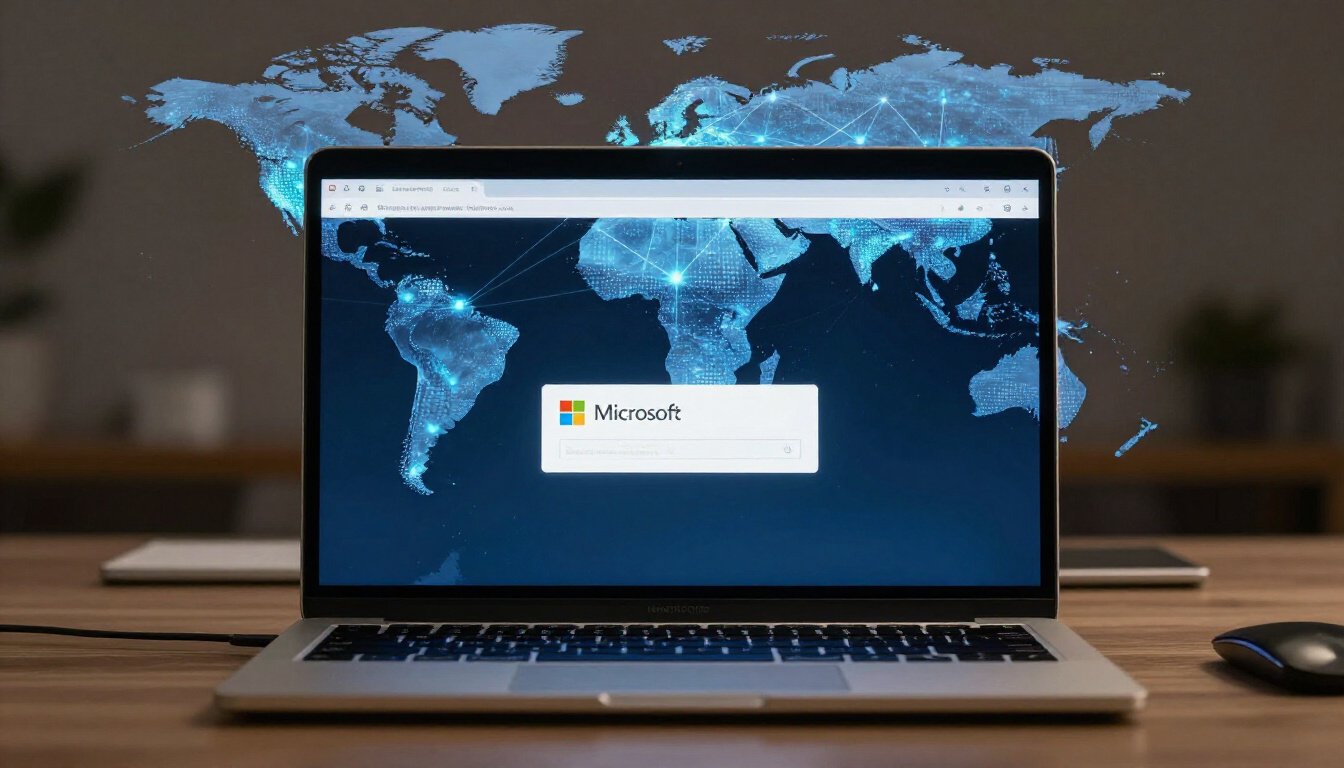
Have you ever received a message from Microsoft about “unusual sign-in activity”? It might have made you feel like a detective in a mystery movie. But don’t worry, you’re not alone. This alert is Microsoft’s way of waving a red flag when something seems off with your account. It’s like having a security guard for your digital self, keeping an eye out for any suspicious activity. Let’s dive into why these alerts pop up and what you can do about them.
First things first, these alerts are all about keeping your account safe from unwanted visitors. Microsoft uses some pretty nifty technology to detect when something’s not quite right. Imagine your account is a house, and Microsoft has a security system that watches for anything unusual. If someone tries to get in through a window instead of the door, the alarm goes off. That’s what these alerts are—a warning that something might be amiss.
Now, you might be wondering what exactly triggers these alerts. Well, there are a few common culprits. One biggie is signing in from an unfamiliar location. If you usually log in from New York and suddenly there’s a sign-in attempt from Tokyo, Microsoft takes notice. It’s like if your house key worked in another city—definitely suspicious. Another trigger is using a device that Microsoft doesn’t recognize. So if you get a new phone or laptop, don’t be surprised if you get a heads-up from Microsoft.
So, how does Microsoft figure all this out? They use a combination of machine learning and behavioral analysis. Picture it like a super-smart detective who knows your habits. If you always log in at 8 AM from your home computer, and suddenly there’s a login at midnight from a random device, the detective raises an eyebrow. This tech helps Microsoft differentiate between you and potential intruders, making sure your account stays yours.
But what should you do if you get one of these alerts? First, don’t panic. Check if it was really you trying to log in. If it wasn’t, change your password pronto. It’s like changing the locks on your door if you lose your keys. Microsoft might also ask you to verify your identity, just to be sure. It’s a bit of a hassle, but better safe than sorry, right?
Lastly, let’s talk about how you can prevent these alerts from happening too often. Think of it as adding extra locks to your digital house. Use strong passwords, enable two-factor authentication, and keep an eye on your account activity. It’s all about making it tougher for anyone to sneak in without you knowing.
In a nutshell, Microsoft’s unusual sign-in activity alerts are there to protect you. They might seem like a nuisance, but they’re really your digital security team, working around the clock. So next time you get an alert, take a moment to appreciate the technology keeping your account safe and sound.
Understanding Unusual Sign-In Activity
Ever had that moment when you get an alert from Microsoft about an unusual sign-in activity and your heart skips a beat? It’s like when you misplace your keys and panic sets in, only to find them in your pocket. But why does Microsoft flag these sign-ins? Let’s dive into the nitty-gritty.
Microsoft defines unusual sign-in activity as any attempt to access your account that doesn’t fit your typical behavior. Imagine your account as a cozy little house. You know who usually comes and goes. But if a stranger suddenly appears at the door, you’d be suspicious, right? That’s exactly how Microsoft views unexpected login attempts.
Now, why is this important? Well, it’s all about keeping your account safe from those pesky unauthorized access attempts. Think of it as having a vigilant guard dog that barks at anything out of the ordinary. Microsoft uses advanced algorithms to monitor sign-in patterns. When something seems off, you get an alert. It’s their way of saying, “Hey, something’s fishy. Check it out!”
But what exactly constitutes unusual activity? It could be a sign-in from a new location. Maybe you’re logging in from a friend’s house or a coffee shop across town. Or perhaps it’s a new device. Your account is used to seeing your laptop, but suddenly there’s a tablet trying to get in. These are red flags that prompt Microsoft to send you a heads-up.
To better understand, let’s look at a simple breakdown:
| Trigger | Description |
|---|---|
| Unfamiliar Location | Sign-ins from unexpected geographic locations. |
| New Device | Attempts from devices not previously recognized. |
| Unusual Patterns | Login attempts that deviate from your normal routine. |
So, the next time you get one of these alerts, don’t panic. It’s just Microsoft doing its job, ensuring your digital world is safe and sound. Remember, it’s better to be safe than sorry. And if you’re ever in doubt, it’s always a good idea to verify your identity and secure your account. After all, peace of mind is priceless.
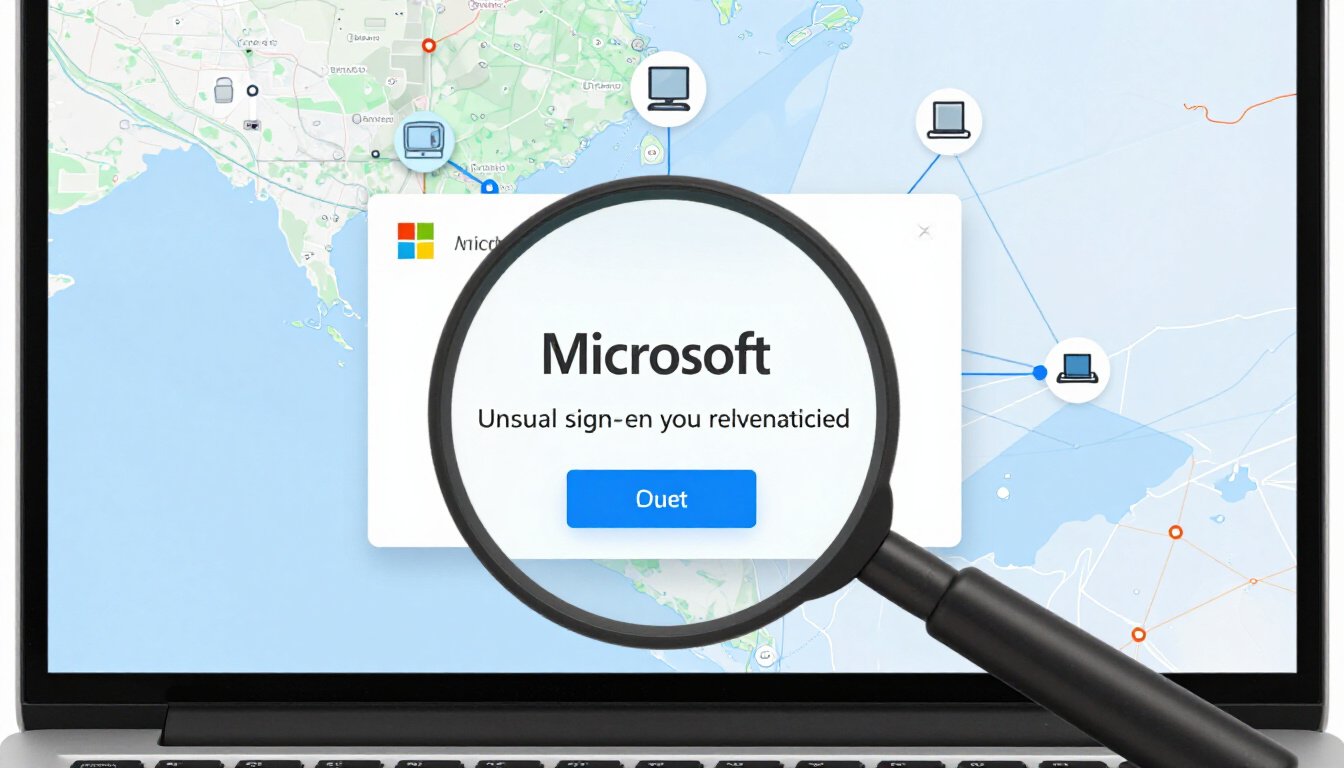
Common Triggers for Alerts
Ever wondered why you suddenly receive an alert from Microsoft about unusual sign-in activity? It’s like when your dog barks at the mailman. It’s a warning. Something’s up. Microsoft is just watching your back, making sure no one else is sneaking into your account. But what exactly sets off these alerts? Let’s dive into the common triggers.
First off, location matters. Imagine you’re on vacation, sipping a cold drink on a sandy beach. You decide to check your emails. Suddenly, bam! An alert. Why? Because your account was accessed from a location far from your usual stomping grounds. Microsoft sees this as a red flag. It’s like seeing a penguin in the desert. It just doesn’t belong. If you often travel, it might be wise to let Microsoft know in advance to avoid these alerts.
Next, let’s talk about devices. Suppose you just bought a shiny new laptop. You log into your Microsoft account, and boom, another alert. Why? Because your account was accessed from a device it doesn’t recognize. It’s like a stranger showing up at a family reunion. Microsoft’s algorithms are designed to notice these new or unrecognized devices. They’re like the bouncers at a club, making sure only familiar faces get in. If you switch devices frequently, it might be a good idea to register them with Microsoft to keep things smooth.
Lastly, there’s the matter of login patterns. This one’s a bit tricky. If you usually log in around 8 AM and suddenly there’s a login attempt at 3 AM, Microsoft might raise an eyebrow. It’s like your cat meowing at 2 AM for no reason. Odd, right? These patterns help Microsoft determine if the activity is legit or if someone’s trying to pull a fast one. If your schedule changes, consider updating your login habits in your account settings.
In summary, these alerts are like a friend who’s got your back. They might seem annoying at times, but they’re there to protect you. By understanding these triggers, you can better manage your account security and avoid unnecessary alerts. Remember, it’s all about keeping your digital life safe and sound.
Location-Based Alerts
Ever wondered why Microsoft sometimes throws an alert your way when you try to sign in from a different place? It’s all about keeping your account safe. Imagine your account as a house. If someone tries to enter through a window rather than the front door, you’d want to know, right? That’s what these location-based alerts are like. They act as a virtual watchdog, barking at any suspicious attempts to access your account from unfamiliar places.
Let’s say you usually log in from your cozy home in New York. But suddenly, there’s a sign-in attempt from Tokyo. Microsoft thinks, “Hmm, that’s odd,” and sends you an alert. It’s like having a friend who always has your back, making sure no one sneaks into your digital life without you knowing.
These alerts are a part of Microsoft’s broader strategy to protect your account. They use a combination of IP address tracking and geolocation data. This means that if your account is accessed from a location that’s miles away from your usual spot, you’ll get a heads-up. It’s like having a virtual map that flags any unexpected detours.
But what if you’re traveling? No worries. You can manage these alerts by letting Microsoft know about your travel plans. It’s as simple as updating your account settings or using the Microsoft Authenticator app. Think of it as giving your digital watchdog a heads-up that you’re going on vacation, so it doesn’t bark at every passerby.
In essence, location-based alerts are there to ensure that your account remains yours. They provide an extra layer of security, keeping your digital world safe from prying eyes. So, the next time you receive one of these alerts, remember that it’s just Microsoft’s way of saying, “We’ve got your back.”
Device-Based Alerts
Ever get that gut feeling when something just doesn’t sit right? That’s exactly what Microsoft aims to capture with its . Imagine you’re sitting at your favorite coffee shop, sipping on a latte, and suddenly you get an alert on your phone. Your Microsoft account was accessed from a device you’ve never heard of. Panic sets in. But don’t worry, this is precisely why these alerts exist.
Device-based alerts are like your personal digital bodyguards. They kick into action when a new or unrecognized device tries to access your account. Why? Because not every device is friendly. Imagine lending your house keys to a stranger. Sounds scary, right? That’s how Microsoft sees it when an unfamiliar device knocks on your account’s door.
So, how does this work? Microsoft uses a combination of advanced technology and a sprinkle of magic (okay, maybe not magic, but it feels like it!) to keep an eye on devices. When a device that’s never been used to sign in before pops up, it raises a red flag. This is particularly true if the device is trying to access sensitive information. It’s like having a vigilant guard dog, always on the lookout for anything out of the ordinary.
But what should you do when you receive such an alert? First, take a deep breath. Then, verify if it was indeed you trying to sign in from a new device. Perhaps you got a new tablet or phone and forgot about it. If it was you, simply confirm it. If not, it’s time to take action. Change your password immediately and review your account’s recent activity. This is your digital space, and you have the right to keep it safe.
In essence, device-based alerts are a crucial part of Microsoft’s security measures. They act as a barrier, ensuring that only you and your trusted devices have access to your account. So, next time you receive one, remember: it’s not just an alert, it’s a protective measure, keeping your digital life secure and sound.
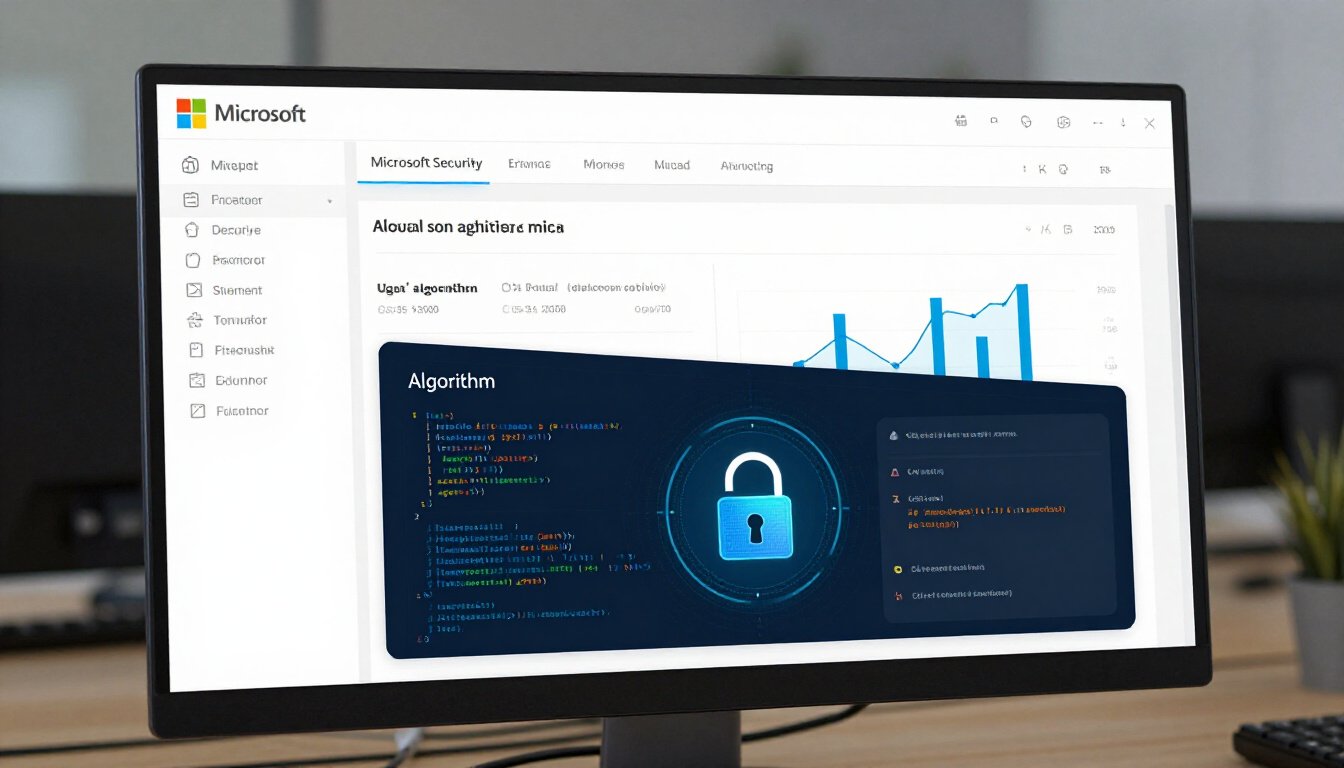
How Microsoft Detects Unusual Activity
Ever wonder how Microsoft knows when something fishy is going on with your account? It’s like they have a digital watchdog keeping an eye out for you. Well, they do, in a way. Microsoft uses a blend of sophisticated technology and smart algorithms to keep tabs on your sign-in activities. It’s not magic, it’s science. And it’s all about keeping your account safe from prying eyes.
At the heart of this process is a combination of machine learning and behavioral analysis. These are the unsung heroes working behind the scenes. Imagine having a personal detective who knows your routines so well that any deviation sets off alarm bells. That’s what these technologies do. They learn your usual sign-in habits, like the locations you log in from or the devices you use. When something out of the ordinary happens, they raise a red flag.
Let’s break it down a bit. Machine learning is like teaching a computer to recognize patterns. Over time, it gets better at predicting what’s normal and what’s not. For instance, if you usually sign in from New York but suddenly there’s an attempt from Tokyo, it might think, “Hold on, that’s odd.” This doesn’t mean you can’t travel, but it does mean Microsoft is on high alert for any unusual activity.
Then there’s behavioral analysis. Think of it as the Sherlock Holmes of the digital world. It looks at how you interact with your account. Do you usually log in at 8 AM? Do you often access certain files? It knows your habits. So, if someone tries to log in at 3 AM and starts poking around in files you rarely use, it might suspect foul play.
These technologies are constantly evolving, learning, and adapting. They’re like the digital guard dogs of your account. And while they might not catch everything, they’re pretty darn good at sniffing out trouble before it gets too close. So next time you get an alert, remember, it’s just Microsoft’s way of saying, “We’ve got your back.”
Machine Learning in Security
When it comes to keeping your Microsoft account safe, machine learning plays a pivotal role. Imagine it as a digital watchdog, constantly on the prowl for anything fishy. But how does it do that? Well, it’s all about analyzing patterns. Just like how you might notice if your dog starts barking at a stranger, machine learning notices when something’s off with your sign-ins.
Machine learning dives deep into the data. It looks at where and how you usually log in. If you always sign in from your laptop in New York and suddenly there’s an attempt from Tokyo, it raises a red flag. It’s like having a super-smart assistant who knows your habits better than you do. And when it detects something unusual, it doesn’t just sit there. It acts.
But it’s not just about locations. It also checks the devices you use. If a new gadget tries to access your account, machine learning kicks into high gear. It questions, “Is this really you?” This process helps in distinguishing between you and a potential intruder. It’s like having a bouncer at the door of your digital life, ensuring only the right people get in.
Another cool thing is how machine learning adapts. Over time, it learns about your behaviors. Maybe you’ve started traveling more or using a new device. It takes note and adjusts its alerts accordingly. This adaptability is crucial because it reduces false alarms, saving you from unnecessary panic.
In essence, machine learning is your silent guardian. It works tirelessly, using complex algorithms to keep your account secure. It’s like having a vigilant friend who’s always watching your back, ensuring that your digital world remains safe and sound.
Behavioral Analysis
Ever wondered how Microsoft seems to know when something’s off with your account? It’s like they have a sixth sense, right? Well, it’s all thanks to something called . Imagine trying to distinguish between a friend and a stranger just by the way they knock on your door. That’s what Microsoft does with your login attempts. They look for patterns. They analyze the usual rhythm of your sign-ins, like a detective piecing together clues.
So, how does this work? Let’s break it down. When you log in, Microsoft checks your usual habits. Are you logging in from your favorite coffee shop? Is it the same device you always use? They even consider the time of day you typically sign in. It’s like having a digital diary of your login habits. If something doesn’t fit the pattern, it raises a red flag. It’s like noticing a new footprint in your backyard. Suspicious, right?
But wait, there’s more. Microsoft doesn’t just stop at noticing differences. They use advanced algorithms to determine if these anomalies are truly threats. It’s like having a super-smart security guard who knows when to call for backup. If the system detects a sign-in attempt that seems fishy, it triggers an alert. This alert is your cue to check things out and ensure your account isn’t being tampered with.
Now, you might be thinking, “What if I decide to log in from a new place or device?” That’s where the beauty of behavioral analysis shines. Microsoft learns and adapts. Once you verify your identity, the system updates its understanding of your behavior. It’s like teaching your dog a new trick. Over time, it becomes familiar with your new patterns, reducing the chances of false alarms.
In essence, behavioral analysis is all about keeping your account safe without making your life complicated. It’s like having an invisible shield that guards your digital world. So, next time you get an alert, remember it’s not just a random message. It’s a carefully crafted warning, designed to keep you safe in the ever-evolving landscape of online security.
Responding to an Alert
So, you’ve received a Microsoft unusual sign-in activity alert. What now? First off, don’t panic. These alerts are your digital watchdogs, keeping a keen eye on your account’s safety. But how should you respond? Let’s break it down.
When that alert pops up, the first thing you should do is verify the activity. Ask yourself: Did I recently log in from a new device or location? If the answer is yes, then you’re likely in the clear. But if not, it’s time to dig deeper. Check the details provided in the alert. Look at the time, date, and location of the sign-in attempt. Does anything seem off?
If you’re scratching your head, wondering if someone else is trying to sneak into your account, it’s time to take action. Microsoft usually provides a link in the alert to secure your account. Clicking it will guide you through the steps to change your password. Make sure it’s a strong one. Think of it as a digital fortress. Use a mix of letters, numbers, and symbols. Avoid obvious choices like “password123” or “qwerty.”
Next, consider enabling two-factor authentication (2FA) if you haven’t already. This adds an extra layer of security, like a second lock on your front door. Even if someone has your password, they won’t get far without that second key. 2FA usually involves a code sent to your phone or email, adding a hurdle for any would-be intruders.
After securing your account, review your recent activity. Microsoft provides an activity log where you can see all recent sign-ins. This is like checking your bank statement for any suspicious transactions. If you spot any sign-ins you don’t recognize, report them to Microsoft. They’re like the digital police, ready to investigate any unauthorized access.
Lastly, take a moment to review your security settings. Are they as tight as they could be? Consider updating your security questions, reviewing connected devices, and ensuring your recovery options are up-to-date. It’s like giving your digital house a once-over, making sure all the windows and doors are locked.
In summary, responding to an unusual sign-in alert is all about being proactive. Verify the activity, secure your account, and review your settings. With these steps, you’re not just reacting to a threat; you’re fortifying your defenses against future ones. Remember, in the world of digital security, vigilance is your best ally.
Preventive Measures to Enhance Security
In today’s digital age, keeping your Microsoft account secure is like guarding a treasure chest. You wouldn’t leave it open for just anyone to peek inside, would you? That’s why it’s crucial to take **preventive measures** to enhance your account’s security. But where do you start? Let’s dive into some practical steps that can help you keep unwanted guests at bay.
First things first, always ensure your passwords are strong. Think of them as the lock on your treasure chest. A weak password is like using a flimsy padlock that can be easily picked. Use a combination of uppercase and lowercase letters, numbers, and symbols. Avoid using obvious choices like ‘password123’ or your birthdate. Instead, opt for something unique and complex.
Next up, consider enabling **two-factor authentication** (2FA). This is like adding an extra layer of security, akin to installing a security system alongside your lock. With 2FA, even if someone gets hold of your password, they’ll still need a second piece of information to access your account. This could be a code sent to your phone or an authentication app. It’s a simple yet effective way to keep intruders out.
Another key step is to regularly review your account activity. Think of it as checking the security logs of your treasure chest. Microsoft provides tools that allow you to see where and when your account has been accessed. If you notice any unfamiliar activity, it’s time to take action – change your password and review your security settings.
Don’t forget about your devices. Ensure they are secure and up-to-date. Outdated software can be a weak spot that hackers exploit. It’s like having a rusty hinge on your treasure chest – it might hold for a while, but eventually, it could give way. Regular updates ensure that your device is fortified against the latest threats.
Lastly, be cautious of phishing attempts. These are like sneaky pirates trying to trick you into handing over your keys. Always double-check emails or messages that ask for your login details, especially if they claim to be from Microsoft. Legitimate companies will never ask for your password via email.
By taking these **preventive measures**, you’re not just securing your Microsoft account; you’re safeguarding your digital life. Remember, in the world of cybersecurity, a proactive approach is always better than a reactive one. So, tighten those locks, keep a watchful eye, and rest easy knowing your treasure is safe.
Frequently Asked Questions
- What is an unusual sign-in activity alert from Microsoft?
Ever received a notification that made you raise an eyebrow? That’s what an unusual sign-in activity alert does! Microsoft sends these alerts to inform you of potentially suspicious attempts to access your account. It’s like having a virtual watchdog that barks when something seems off. These alerts aim to protect your account from unauthorized access by flagging activities that don’t fit your usual login pattern.
- Why did I receive an alert even though I signed in myself?
Feeling puzzled because you got an alert after logging in yourself? Don’t worry, it happens! Microsoft might trigger an alert if you sign in from a new device, an unfamiliar location, or if your login behavior changes. Think of it as your account’s way of ensuring you’re the one behind the wheel, even if you’re just taking a detour.
- How does Microsoft determine unusual activity?
Curious about the tech behind the magic? Microsoft uses advanced algorithms and machine learning to analyze login attempts. It’s like having a digital detective that scrutinizes patterns and behaviors to spot anything fishy. By leveraging these technologies, Microsoft can differentiate between a legitimate login and a potential threat.
- What should I do if I receive an unusual sign-in alert?
Got an alert and feeling like you’re in a spy movie? First, don’t panic. Check the details of the alert to see if it matches your recent activity. If it doesn’t, verify your identity and change your password to secure your account. It’s like tightening the locks on your digital door to keep intruders out.
- Can I prevent false alerts from happening?
Want to keep those false alarms at bay? You can take proactive steps like updating your security info, enabling two-factor authentication, and keeping your devices secure. Think of it as building a fortress around your account, making it harder for anyone to trigger an alert unnecessarily.