Ever received a ‘Suspicious sign in prevented’ email from Google and wondered what it means? Don’t worry; you’re not alone. This email is Google’s way of saying, “Hey, we noticed something odd with your account, and we’ve got your back!” It’s like having a virtual security guard watching over your shoulder. But what exactly triggers this alert, and how should you respond? Let’s dive in and explore.
First things first, why does Google send this email? The ‘Suspicious sign in prevented’ email is designed to alert you when an unusual sign-in attempt is detected. It’s Google’s way of ensuring that you are aware of any potential threats to your account. Think of it as an early warning system, letting you know that someone might be trying to sneak into your digital house.
So, what sets off this alarm? There are several scenarios. Maybe you logged in from a new device or location. Or perhaps someone attempted to access your account with the wrong password. These are just a couple of examples of what might trigger the notification. It’s like Google playing detective, piecing together clues to keep your account safe.
In a world full of phishing scams, how can you be sure this email is from Google? Look for telltale signs like the sender’s email address and the presence of your account’s last activity details. Genuine Google emails will never ask for your password or personal information. It’s like spotting a fake dollar bill; with a little scrutiny, you can tell the real from the fake.
Received the email? Don’t panic. Here’s what you should do:
- Check the email details to ensure it’s from Google.
- Log into your account directly from the Google homepage, not through links in the email.
- Review your account activity for any unauthorized access.
Think of it as following a safety checklist to ensure everything is in order.
Curious about who’s been trying to access your account? Google makes it easy to check recent sign-in attempts. Simply navigate to your account settings and review the activity log. It’s like having a security camera that records all the comings and goings at your digital doorstep.
Want to fortify your account further? Start by changing your password to something strong and unique. Avoid using easily guessable information like birthdays or common words. It’s like building a sturdy fence around your digital property, keeping the intruders at bay.
Two-factor authentication (2FA) adds an extra layer of security. By requiring a second form of verification, such as a text message code, you make it much harder for unauthorized users to access your account. It’s like having a second lock on your front door—extra peace of mind.
Keeping your recovery email and phone number up-to-date is crucial. In case you ever get locked out, these details will help you regain access. It’s like having a spare key hidden in a safe place, just in case you misplace the original.
Phishing emails can look convincing, but they often contain subtle clues. Look for poor grammar, suspicious links, or requests for personal information. Being able to recognize these attempts is like having a radar that detects incoming threats, allowing you to steer clear of danger.
If you spot something fishy, report it to Google immediately. Use their reporting tools to alert them of potential threats. It’s like calling the neighborhood watch to report suspicious activity, ensuring everyone stays safe.
Stay informed by setting up account alerts. These notifications will keep you updated on any unusual activity. It’s like having a personal assistant who keeps you in the loop about everything happening with your account.
Google offers a suite of security features designed to protect your account. From advanced encryption to suspicious activity monitoring, these tools are like having a high-tech security system guarding your digital life.
If you suspect your account has been compromised, act quickly. Use Google’s recovery options to regain control. It’s like calling in the cavalry to help you reclaim your territory from invaders.
Google’s Security Checkup tool is a handy resource for reviewing your account’s security settings. It offers personalized recommendations to enhance protection. Think of it as a digital health check-up, ensuring everything is in tip-top shape.
Review and manage the apps and devices connected to your account. Revoke access to anything suspicious or unnecessary. It’s like cleaning out your garage, getting rid of anything that doesn’t belong.
Strong passwords are your first line of defense. Use a mix of letters, numbers, and symbols to create a robust password. It’s like crafting a unique lock that only you have the key to.
Public Wi-Fi can be a hacker’s playground. Avoid logging into your Google account on unsecured networks. It’s like avoiding dark alleys at night—better to be safe than sorry.
Familiarize yourself with Google’s account recovery options. Knowing how to regain access in case of a lockout is like having a backup plan for any unexpected hiccups.
Keep up with Google’s latest security updates. Staying informed is like keeping up with the latest news, ensuring you’re always in the know.
Share your knowledge with friends and family. Helping others understand the importance of account security is like being a lighthouse, guiding them safely through the digital storm.
Understanding the Email Notification
Have you ever received a ‘Suspicious sign in prevented’ email from Google and wondered what it really means? You’re not alone. This notification is Google’s way of waving a red flag, alerting you that someone might be trying to access your account without permission. It’s like having a security guard at your digital doorstep. But why does Google send these emails, and what should you do when you get one?
First off, it’s important to understand that this email is a part of Google’s security measures. Think of it as a digital watchdog. The purpose of this notification is to protect your account by alerting you to any unusual activity. Google uses complex algorithms and various security signals to detect when something fishy is happening. If a sign-in attempt doesn’t match your usual activity, you’ll get one of these emails. It’s like when your bank calls to verify an unusual purchase.
But how does Google determine what’s suspicious? Imagine you usually log in from New York, and suddenly, there’s an attempt from Tokyo. That’s a red flag. Or maybe you use Chrome on your laptop, but suddenly there’s a login attempt from an unknown device using a different browser. These are the kinds of anomalies that trigger the alert. It’s all about patterns and deviations.
Now, when you receive this email, it’s crucial to act swiftly. But don’t panic. The email will typically contain information about the time, location, and device of the attempted sign-in. This is your clue. If you recognize the activity, it might be a false alarm. Perhaps you were traveling or using a new device. But if it’s unfamiliar, it’s time to roll up your sleeves and secure your account.
In summary, the ‘Suspicious sign in prevented’ email is your early warning system. It’s Google’s way of keeping you in the loop about your account’s security status. By understanding the purpose and acting on these notifications, you can help safeguard your personal information and maintain peace of mind. Remember, in the digital world, vigilance is your best defense.
Common Triggers for the Alert
Have you ever been minding your own business, sipping on a cup of coffee, when suddenly, an email from Google pops up saying, “Suspicious sign in prevented”? It’s like your account just threw up a red flag, right? But why does this happen? Well, let’s dive into the nitty-gritty of these alerts and uncover the mystery behind them.
First off, Google sends these alerts to protect you from unauthorized access. Think of it as your account’s personal bodyguard, always on the lookout for anything fishy. One common trigger is an attempt to sign in from a new device or location. Imagine if you usually log in from sunny California, and suddenly, there’s a sign-in attempt from a café in Paris. Google gets suspicious and rightly so!
Another trigger could be multiple failed login attempts. Picture someone trying to guess your password repeatedly. It’s like they’re knocking on your door, hoping you’ll eventually let them in. Google notices this suspicious behavior and sends you a heads-up. Also, changes in your account settings, such as password updates or recovery information alterations, can set off alarms. It’s like someone rearranging your furniture without your permission.
But wait, there’s more. Ever heard of suspicious apps trying to access your account? Yep, that can also trigger an alert. If an unfamiliar app suddenly wants to connect to your Google account, Google steps in to verify if it’s cool with you. It’s like someone asking to borrow your car keys; you’d want to know why, right?
Here’s a quick overview of common triggers:
- Sign-in attempts from new devices or locations.
- Multiple failed login attempts.
- Changes in account settings.
- Unauthorized app access requests.
In essence, these alerts are your account’s way of saying, “Something’s not right here!” And while they might seem alarming at first, they’re actually your best friend in disguise, helping you keep your account safe from prying eyes. So, next time you get one of these emails, take a deep breath, and remember, it’s just Google looking out for you.
Identifying Legitimate Google Emails
In today’s digital age, it’s crucial to be able to spot a real email from Google amidst the sea of phishing attempts. But how can you tell the difference? Let’s dive into some key pointers that can help you identify legitimate Google emails.
First off, **check the sender’s email address**. Google will always send emails from an address that ends in @google.com. If you see any odd variations, like an extra letter or number, it’s a red flag. Always be cautious of emails claiming to be from Google but having strange email addresses.
Next, look at the **content and tone** of the email. Google emails are usually straightforward and to the point. They won’t contain spelling errors or grammatical mistakes. If an email is full of typos or uses language that seems off, it’s probably not from Google.
Another tip is to **hover over links** without clicking them. Google emails will direct you to official Google domains. If the link preview shows a suspicious URL, it’s best to avoid clicking it. This simple step can save you from falling into a phishing trap.
Google also uses **security features** like two-factor authentication and alerts for unfamiliar sign-ins. If an email asks you to provide personal information or passwords, it’s a scam. Google will never ask for your password in an email.
Finally, if you’re ever in doubt, you can always cross-check by visiting your Google account directly. Go to the official Google website and log in to your account. From there, you can verify any alerts or notifications mentioned in the email.
Here’s a quick **table** to summarize these tips:
| Tip | Description |
|---|---|
| Check the Sender’s Email | Ensure it ends with @google.com |
| Review Content and Tone | Look for errors or unusual language |
| Hover Over Links | Check for official Google domains |
| Avoid Sharing Personal Info | Google won’t ask for passwords via email |
| Cross-Check via Google Account | Verify alerts directly on the Google site |
By following these simple yet effective steps, you can confidently identify legitimate Google emails and protect yourself from potential scams. Remember, vigilance is your best defense in the digital world!
Steps to Take Upon Receiving the Email
So, you’ve just received a ‘Suspicious sign in prevented’ email from Google. First things first, don’t panic. This email is like a friendly neighborhood watch, letting you know that something fishy might be going on with your account. The goal here is to ensure your account stays safe and sound. Let’s dive into what you should do next.
**Step One:** Open the email and take a deep breath. Check the sender’s address to confirm it’s genuinely from Google. It should come from an address like no-reply@accounts.google.com. If it looks sketchy, it might be a phishing attempt. In such cases, don’t click on any links or provide any personal information.
**Step Two:** If the email is legit, your next move is to log into your Google account directly by typing www.google.com into your browser. Avoid clicking any links in the email itself. Once logged in, head straight to your account settings. Here, you can review recent account activity to see if there are any unfamiliar sign-ins or changes.
**Step Three:** In the account settings, look for the section that details recent logins. Google usually provides information such as the location, device, and time of access. If you notice anything out of the ordinary, it’s time to act fast. Change your password immediately to something strong and unique. Remember, a good password is like a sturdy lock on your front door.
**Step Four:** Consider enabling two-factor authentication (2FA) if you haven’t already. This adds an extra layer of security, like a second lock on your door. It means that even if someone gets your password, they won’t be able to access your account without a second form of verification, like a code sent to your phone.
**Step Five:** Finally, update your recovery options. Make sure your recovery email and phone number are current. This ensures you can regain access if you ever get locked out. It’s like having a spare key hidden safely away, just in case.
By following these steps, you’re not just reacting to a potential threat; you’re proactively safeguarding your digital life. Remember, online security is a continuous process. Stay vigilant, and don’t hesitate to reach out to Google’s support if you ever feel unsure about an email or activity.
Reviewing Recent Account Activity
Have you ever received a ‘Suspicious sign in prevented’ email from Google and wondered what triggered it? Well, you’re not alone. It’s a common scenario, and the first step in addressing it is to review your recent account activity. This can help you understand if there was an unauthorized attempt to access your account.
Google provides a straightforward way to check your account’s recent activity. It’s like peeking into your account’s diary to see who’s been trying to get in. To start, go to your Google Account Security Checkup. Here, you’ll find a list of devices that have accessed your account recently. Look for any unfamiliar devices or locations. If you spot something unusual, it might be a red flag.
When reviewing your account activity, it’s crucial to pay attention to the date and time of the sign-in attempts. Ask yourself, “Was I using my account at that time?” If the answer is no, then it’s time to take action. Google provides a helpful feature where you can sign out of all devices except the one you’re using. This is a good way to ensure no one else has access.
Let’s say you notice a suspicious sign-in attempt. What next? First, change your password immediately. Use a combination of letters, numbers, and symbols to create a strong password. Also, consider enabling two-factor authentication if you haven’t already. This adds an extra layer of security, making it harder for anyone to access your account without your permission.
Another useful tip is to keep a record of your usual devices and locations. This helps you quickly identify any anomalies. Think of it as knowing your home’s layout so well that you can instantly spot if something’s out of place. Google also allows you to receive email alerts for any new sign-ins. This way, you’ll be notified immediately if there’s any suspicious activity.
Remember, keeping an eye on your recent account activity is like having a security camera for your digital life. It helps you catch any intruders before they can do any damage. So, make it a habit to regularly check your Google account activity. This proactive approach can save you from a lot of headaches down the road.

Securing Your Google Account
In today’s digital world, securing your Google account is like locking the front door of your house. It’s a must. But how do you ensure that your digital locks are as strong as they can be? Let’s dive into some effective practices that will help you keep your Google account safe from prying eyes.
First things first, always use a strong password. Think of it as a fortress wall. A good password should be long, complex, and unique. Avoid using easily guessable information like birthdays or common words. Instead, combine upper and lower case letters, numbers, and symbols. If you have trouble remembering complex passwords, consider using a password manager. It’s like having a digital keychain that keeps all your keys safe.
Next up, enable Two-Factor Authentication (2FA). This is like adding an extra bolt to your door. Even if someone gets hold of your password, they won’t be able to access your account without a second form of verification. You can choose to receive a text message, use an authenticator app, or even a physical security key. It’s an extra step, but it adds a significant layer of security.
Don’t forget to regularly review your account activity. Google provides a way to see where and when your account has been accessed. If you notice any unfamiliar activity, it’s time to change your password and review your security settings. Think of it as checking the locks and windows of your house to ensure everything is secure.
Keep your recovery information up-to-date. This is crucial because if you ever need to recover your account, having the correct phone number and email address on file will make the process much smoother. It’s like having a spare key hidden securely, just in case.
Lastly, be wary of phishing attempts. These are fraudulent attempts to obtain your sensitive information by disguising as a trustworthy entity. Always double-check the sender’s email address and look for any signs of phishing, such as poor grammar or suspicious links. If something feels off, it probably is. Report such emails to Google to help protect others as well.
By following these steps, you’ll be well on your way to securing your Google account. It’s all about being proactive and vigilant. Remember, in the digital world, staying secure is not just a one-time task but an ongoing process. Just like you’d regularly check the locks on your doors and windows, make it a habit to review and update your account security settings.
Enabling Two-Factor Authentication
Ever heard the saying, “Better safe than sorry”? That’s precisely what Two-Factor Authentication (2FA) is all about. It’s like having a double lock on your front door. When you enable 2FA for your Google account, you’re adding an extra layer of security. This means even if someone gets hold of your password, they still can’t access your account without a second form of verification. It’s like having a secret handshake that only you and Google know.
So, how does it work? Simple. After entering your password, Google will ask for a second piece of information. This could be a code sent to your phone, a prompt on your registered device, or even a physical security key. Think of it as a double-check to ensure it’s really you trying to get in. This extra step might seem like a hassle, but trust me, it’s worth the peace of mind.
To enable 2FA, head over to your Google Account settings. Look for the Security tab. Here, you’ll find the option to set up Two-Factor Authentication. Follow the prompts, and you’re good to go. It’s straightforward, and Google walks you through each step. You can choose the method that suits you best, whether it’s a text message, an authenticator app, or a physical key.
Why bother with 2FA, you ask? Well, think of it as a seatbelt for your online life. It might not prevent accidents, but it sure reduces the damage. In today’s digital world, where cyber threats are lurking around every corner, having 2FA is like having a personal bodyguard for your Google account. It keeps the bad guys out and gives you peace of mind.
But remember, 2FA isn’t foolproof. It’s a robust security measure, but it works best when combined with other security practices. Make sure to keep your recovery information updated and regularly review your account activity. Stay informed about Google’s latest security features. After all, the more you know, the better you can protect yourself.
In conclusion, enabling Two-Factor Authentication is a no-brainer. It’s easy, effective, and essential in safeguarding your digital life. So, take a few minutes today to set it up. Your future self will thank you!
Updating Your Recovery Information
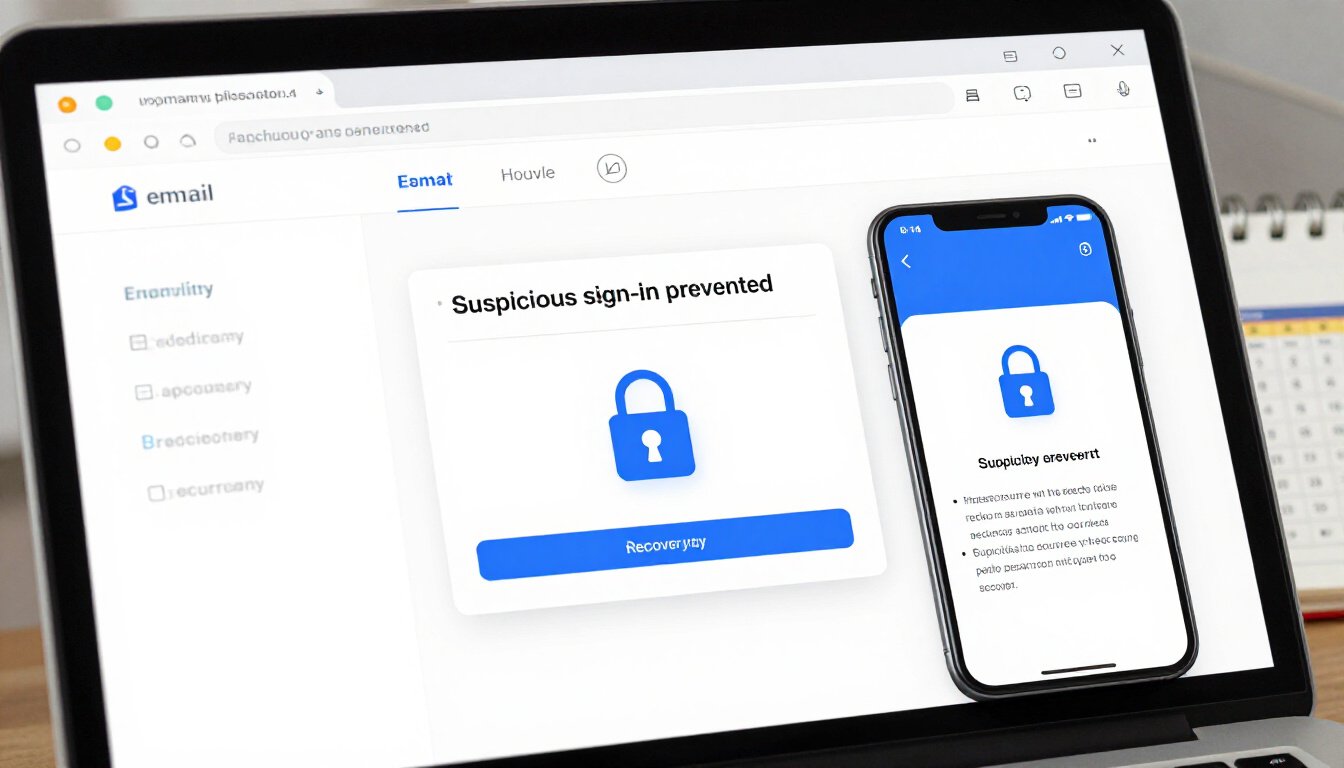
Ever wondered why keeping your recovery information up-to-date is crucial? Imagine locking yourself out of your home. Now, think of your Google account as that home. Without the right keys, you’re stuck outside, vulnerable. That’s where recovery info comes in. It’s your spare key, your lifeline, and your safety net all rolled into one.
Google uses your recovery email and phone number to reach you when something’s amiss. Maybe you’ve forgotten your password. Or perhaps there’s suspicious activity on your account. In these moments, your recovery info is like a superhero swooping in to save the day. But if it’s outdated, it’s like reaching for a lifeline that’s just out of reach.
Updating your recovery information is simpler than you might think. It’s like giving your home a security upgrade. Head over to your Google Account settings. Click on Security, then Ways we can verify it’s you. Here, you can update your recovery email and phone number. Ensure they are current and accessible. Trust me, future-you will thank you.
But why stop there? Regularly checking this information is a good habit to get into. It’s like checking the batteries in your smoke detector. Not glamorous, but oh-so-important. This small step can prevent big headaches down the line.
Consider this: if you change your phone number or switch emails, update your Google account immediately. Don’t let outdated info be the chink in your armor. It’s like leaving the front door open when you leave the house. You wouldn’t do that, right?
Here’s a quick tip: set a reminder to review your recovery information every few months. It’s a simple act that can save you from a world of trouble. Think of it as a regular check-up for your digital health. After all, in the world of online security, being proactive is always better than being reactive.
In summary, keeping your recovery information updated is a bit like having a reliable friend who always has your back. It ensures that, no matter what happens, you can regain control of your account swiftly and securely. So take a moment today to check your settings. It’s a small step that makes a big difference in the grand scheme of your digital life.
Recognizing Phishing Attempts
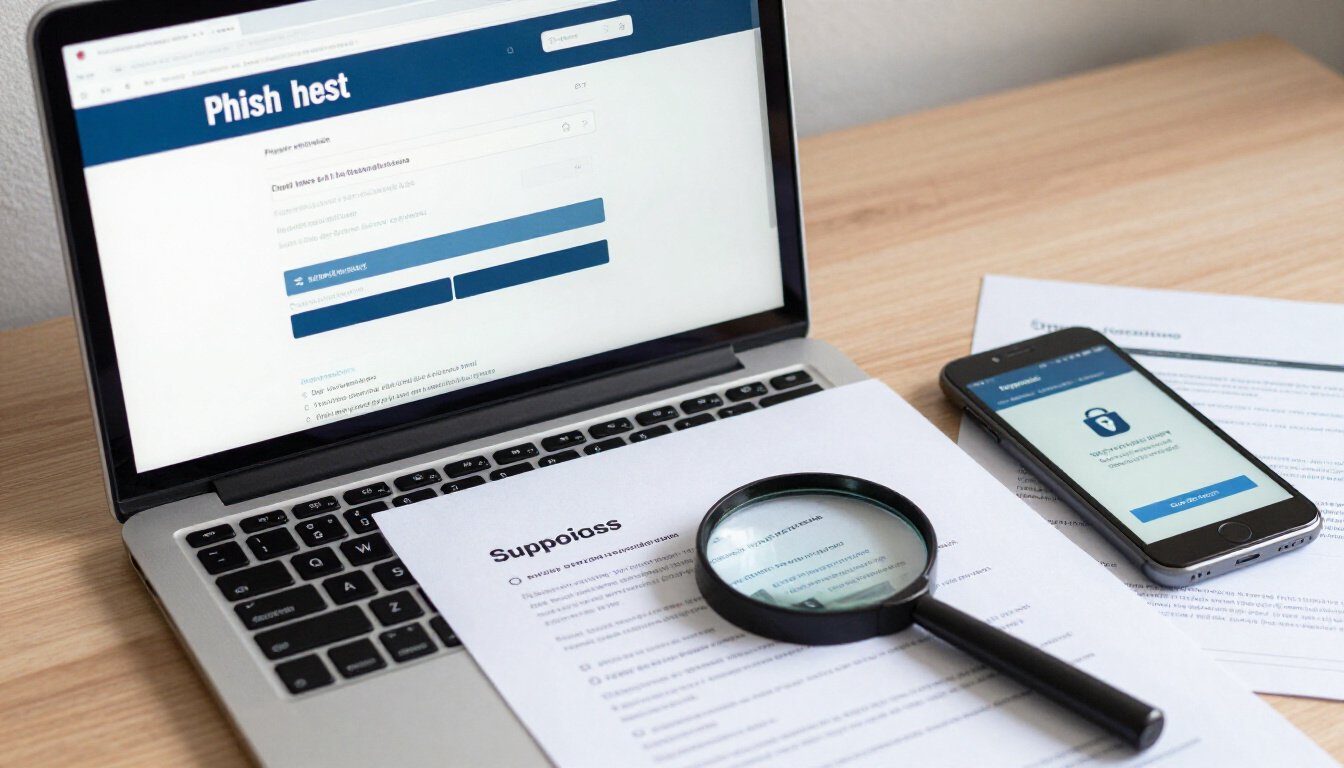
Ever received an email that made you raise an eyebrow? You know, the ones that look *almost* legit but something seems off? That’s a phishing attempt, and it’s crucial to recognize them before you fall into their trap. Phishing emails often mimic legitimate emails, pretending to be from trusted sources like Google. But how do you tell the difference? Let’s dive into the world of phishing and uncover the signs.
First off, **check the sender’s email address**. Phishing emails often come from addresses that look similar to official ones but have slight variations. For example, instead of support@google.com, you might see something like support@goog1e.com. That sneaky little change can make all the difference.
Next, be wary of the **language used in the email**. Phishing attempts often use urgent language to create panic. They might say your account will be suspended if you don’t act immediately. Remember, companies like Google don’t threaten users with immediate action and always offer a way to verify any claims.
Another red flag is the **presence of suspicious links**. Hover over any links in the email without clicking to see where they lead. If the URL doesn’t match the company’s official website, steer clear. Phishers often use these links to direct you to fake websites designed to steal your information.
Additionally, look for **generic greetings**. Legitimate companies usually address you by your name. If an email starts with “Dear User” or “Dear Customer,” it’s time to be cautious. This lack of personalization is a common indicator of phishing.
Phishing attempts often ask for **sensitive information**. No legitimate company will ask for your password, credit card number, or other personal details via email. If you receive such a request, it’s a sure sign of a phishing attempt.
To sum it up, always trust your instincts. If something feels off, it probably is. Stay vigilant, and don’t let phishers reel you in. By recognizing these signs, you can protect yourself and your information from falling into the wrong hands.
Reporting Suspicious Activity to Google
Ever felt a chill down your spine upon receiving a ‘Suspicious sign-in prevented’ email from Google? You’re not alone. It’s like finding an unfamiliar footprint in the snow outside your house. But don’t panic. Knowing how to report suspicious activity to Google is your first step in safeguarding your digital home.
First things first, let’s talk about why it’s important to report anything fishy. Imagine you’re a detective in your own digital world. Reporting suspicious activity is like gathering clues to solve a mystery. It helps Google bolster its security measures and, in turn, keeps your account safer.
So, what should you do when you suspect something’s off? Start by logging into your Google account directly from the official website. Avoid clicking on any links in the email. These could be traps set by cyber tricksters. Once you’re in, head over to the Security section. It’s like the control room of your digital fortress.
In the Security section, you’ll find an option to review recent activity. This is where you can play detective. Look for any unfamiliar devices or locations that have accessed your account. If you spot something suspicious, it’s time to report it. Google provides a straightforward way to report these anomalies. Simply follow the prompts, and you’re on your way to securing your account.
But wait, there’s more. Google loves feedback. If you receive an email that looks like a phishing attempt, you can forward it to phishing@google.com. It’s like sending a smoke signal to the experts who can then investigate and take action. Remember, reporting isn’t just about protecting yourself; it’s about keeping the entire community safe.
To make things even clearer, here’s a quick summary:
- Log into your account directly from the official Google website.
- Navigate to the Security section to review recent activity.
- Report any unfamiliar devices or locations.
- Forward suspicious emails to phishing@google.com.
In conclusion, reporting suspicious activity is a crucial part of maintaining your account’s security. Think of it as a neighborhood watch for the internet. By staying vigilant and reporting anything unusual, you help create a safer online environment for everyone. So, next time you get that eerie email, don’t fret. You’ve got the tools and know-how to handle it like a pro.
Setting Up Account Alerts
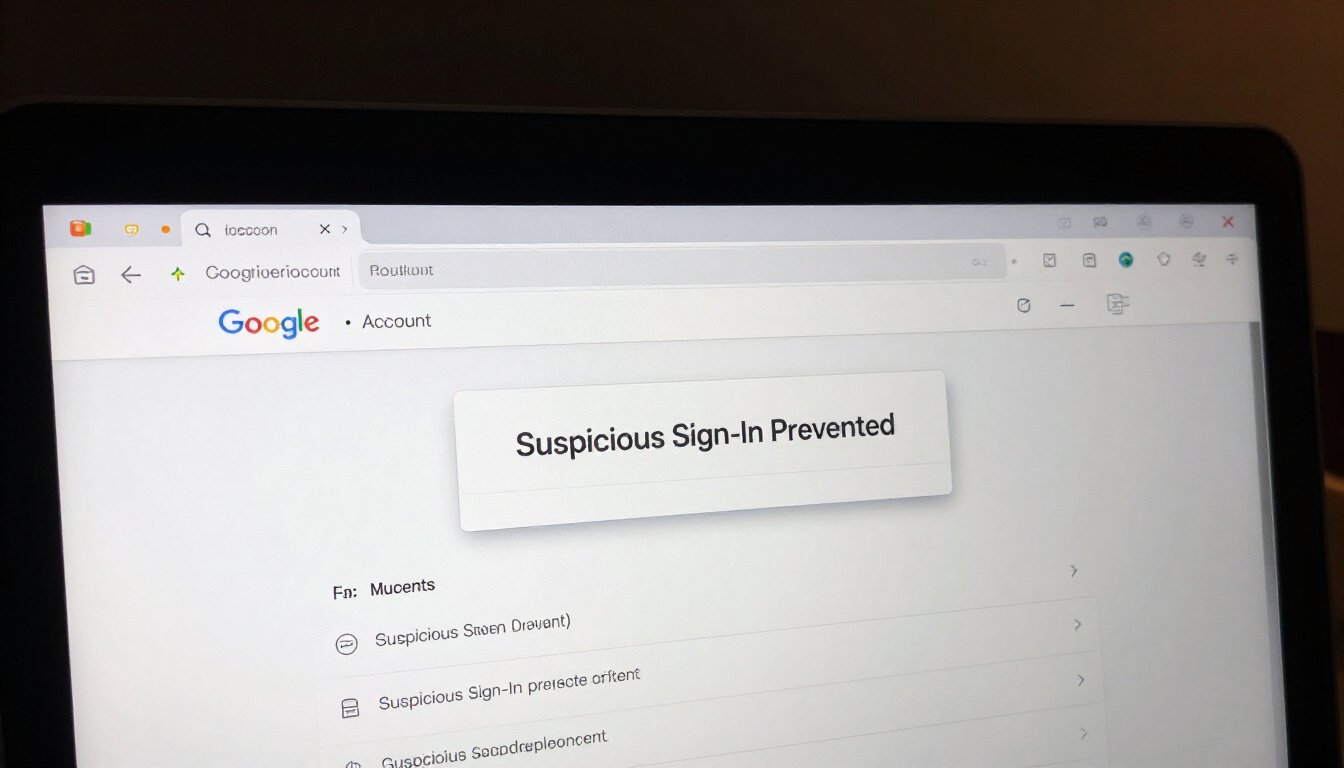
Ever felt like your online world is a bit like the Wild West? Well, setting up account alerts can be your trusty sidekick in this digital frontier. Imagine having a watchful eye that keeps you informed about any unusual activity on your Google account. Sounds reassuring, right? Let’s dive into how you can set up these alerts and keep your account safe and sound.
First things first, why are account alerts so crucial? Think of them as your early warning system. They notify you of any suspicious activity, like a sign-in from a new device or location. It’s like having a security camera for your online presence. And trust me, you don’t want to be caught off guard.
To get started, head over to your Google Account settings. Under the ‘Security’ section, you’ll find options to manage your alerts. It’s as simple as flipping a switch. But don’t let the simplicity fool you; this small step can make a big difference. You’ll receive notifications via email or even on your phone, ensuring you’re always in the loop.
Now, you might wonder, “What if I miss an alert?” That’s where the beauty of technology comes in. Google allows you to customize the types of alerts you receive. You can choose to be notified about specific activities, like password changes or new sign-ins. It’s like having a tailor-made security system that fits your needs perfectly.
But remember, alerts are only effective if you pay attention to them. It’s easy to ignore notifications in a world where we’re bombarded with them. However, think of these alerts as a gentle nudge, reminding you to stay vigilant. After all, it’s better to be safe than sorry.
In conclusion, setting up account alerts is a simple yet powerful way to enhance your Google account security. It’s like having a digital watchdog that never sleeps. So, take a few minutes to set them up today. Your future self will thank you.

Understanding Google’s Security Features
Have you ever wondered how Google keeps your account safe? It’s like having a digital bodyguard that never sleeps. Google’s security features are designed to protect your account from unauthorized access and potential threats. But what makes these features so effective? Let’s dive in and uncover the layers of security Google offers.
Firstly, Google employs a robust multi-layered security approach. This means there are several barriers between your account and anyone trying to access it without permission. Think of it as a fortress with multiple gates. Each gate represents a different security feature, and together, they form a formidable defense.
One of the standout features is Google’s advanced threat detection. This system uses machine learning to identify and block suspicious activities before they can cause harm. Imagine having a security camera that not only records but also predicts potential threats. This proactive approach is key to keeping your data safe.
Another crucial element is encryption. Google ensures that your data is encrypted both in transit and at rest. This means that even if someone intercepts your data, they won’t be able to read it. It’s like sending a message in a secret code that only you and Google can decipher.
For those who like to keep an eye on their account’s security, Google offers the Security Checkup tool. This tool acts like a personal security consultant, providing a comprehensive review of your account’s security settings. It offers personalized recommendations to enhance your security posture, ensuring you’re always a step ahead of potential threats.
In addition to these features, Google provides account alerts. These alerts notify you of unusual activity, such as sign-ins from unfamiliar locations or devices. It’s like having a watchdog that barks at any sign of trouble, giving you the chance to act swiftly.
To top it all off, Google’s security features are constantly evolving. The company regularly updates its security protocols to address new threats, ensuring that your account is protected against the latest vulnerabilities. It’s like having a team of experts working around the clock to keep your digital life secure.
In summary, understanding Google’s security features is crucial for maintaining a safe online presence. With its multi-layered approach, advanced threat detection, encryption, and proactive alerts, Google provides a comprehensive security framework. It’s like having a digital fortress, always ready to defend your data from the ever-evolving landscape of online threats.

Recovering a Compromised Account
Discovering that your Google account has been compromised can feel like finding your house keys in the hands of a stranger. It’s unsettling, to say the least. But don’t panic. There’s a path to reclaiming your digital space and securing it against future intrusions. The first step is to assess the situation. Were you locked out of your account, or did you notice suspicious activity? Identifying the signs can help you determine the severity of the breach.
Once you’ve recognized the issue, it’s crucial to act swiftly. Begin by attempting to reset your password. This is your initial line of defense. If you can still access your account, navigate to the Google Account Recovery page. Follow the prompts to reset your password, ensuring it’s both strong and unique. Avoid using easily guessed combinations like ‘123456’ or ‘password’. Instead, think of a phrase or a mix of random words that only you would know.
If you’re unable to reset your password, don’t worry. Google offers a recovery process designed to help you regain access. This involves verifying your identity through your recovery email or phone number. It’s a bit like proving you are who you say you are at a club entrance. Make sure these recovery options are up-to-date to avoid any hiccups. If your recovery information is outdated, you might face additional challenges in proving your identity.
After regaining access, it’s time to review your account for any unauthorized activity. Check your recent sign-in attempts and connected devices. Look for anything unfamiliar. If you spot something suspicious, remove it immediately. This is akin to changing the locks on your door after a break-in. You wouldn’t want the intruder to have a spare key.
Next, consider enabling two-factor authentication (2FA). This adds an extra layer of security, requiring not just a password, but also a second form of verification. Think of it as a double lock on your digital door. Even if someone gets hold of your password, they’ll need that second factor to gain entry.
Finally, it’s important to stay informed about Google’s security features and updates. Regularly check for security alerts and updates from Google. These updates are like weather forecasts, helping you prepare for any potential storms on the horizon. By staying informed, you can ensure your account remains secure and protected against future threats.
Using Google’s Security Checkup Tool
Ever wondered if your Google account is as secure as it can be? Well, Google’s Security Checkup tool is like having a digital bodyguard. It’s there to help you beef up your account security with just a few clicks. Sounds simple, right? That’s because it is! In this digital age, where cyber threats are lurking around every corner, taking a few minutes to review your account’s security settings can be a game-changer.
Now, let’s dive into how you can use this handy tool. The Security Checkup tool is designed to guide you through a series of steps that assess your account’s current security status. It checks for potential vulnerabilities like weak passwords, outdated recovery information, and connected devices that might seem suspicious. Think of it as a routine check-up at the doctor’s office, but for your digital life.
When you access the tool, you’ll see a dashboard that highlights areas needing attention. For example, it might flag an unfamiliar device that recently accessed your account. Or maybe it will suggest enabling two-factor authentication for an extra layer of security. This tool is all about making sure you’re in control. Remember, knowledge is power, and knowing what’s happening with your account is the first step in keeping it safe.
But wait, there’s more! The Security Checkup tool also provides personalized recommendations. It’s like having a personal trainer for your digital security. These recommendations are tailored to your account’s specific needs, ensuring that you’re not just following generic advice but taking steps that actually matter for your situation.
And don’t worry if you’re not a tech wizard. Google’s made it user-friendly. The interface is intuitive, with clear instructions and explanations. Plus, you can revisit the tool anytime you want to re-evaluate your security settings. It’s like having a safety net that’s always there when you need it.
So, what are you waiting for? Give your Google account the security boost it deserves. Head over to the Security Checkup tool and take charge of your digital safety. After all, in a world where data breaches and cyber-attacks are becoming all too common, a little precaution can go a long way.
Managing Connected Apps and Devices
Have you ever wondered how many apps and devices are connected to your Google account? It’s like having a bunch of keys to your digital kingdom floating around. Managing these connections is essential to keep your account safe and sound. Let’s dive into how you can effectively manage these connections and ensure that your Google account remains secure.
First things first, head over to your Google Account settings. Here, you can find a section dedicated to Security. Within this section, you’ll notice a subsection titled Third-party apps with account access. This is where the magic happens. You’ll see a list of all the apps that have access to your Google account. It’s like looking at a guest list for a party you didn’t know you were hosting!
Take a moment to review each app. Ask yourself, “Do I still use this app?” If the answer is no, it’s time to revoke its access. Removing unnecessary apps is a simple yet powerful step in securing your account. You don’t want to leave the door open for apps you no longer use, right?
Next, let’s talk about devices. Under the Security section, there’s another subsection called Your devices. This is where you can see all the devices that have been used to sign in to your account. It’s like having a list of all the places you’ve visited with your digital passport. If you spot a device you don’t recognize, it’s time to take action. Sign out of that device immediately. It’s better to be safe than sorry.
Now, you might be wondering, “How often should I check these settings?” Well, think of it like checking the locks on your doors before going to bed. Regularly reviewing your connected apps and devices ensures that your account remains secure. Make it a habit to check every few months or whenever you receive a suspicious sign-in alert.
Lastly, remember that managing your connected apps and devices is just one piece of the security puzzle. Combine this with other security measures like enabling two-factor authentication and creating strong passwords. It’s all about building a fortress around your digital life.
So, take a moment today to review your connected apps and devices. It’s a small step that can make a big difference in securing your Google account. After all, in the digital age, protecting your online presence is as important as locking your front door.

Creating Strong Passwords
In today’s digital age, creating a strong password is like building a fortress for your online presence. It’s not just about keeping your Google account safe; it’s about protecting your digital identity. So, how do you craft a password that stands up against the test of time and technology? Let’s dive into the essentials of creating a password that’s as tough as nails.
Firstly, let’s talk length. A good password is like a novel, the longer, the better. Aim for at least 12 characters. This isn’t just a random number; it’s a sweet spot that makes your password hard to crack but easy enough to remember. Think of it as a secret handshake only you know.
Next, mix it up! Use a combination of uppercase and lowercase letters, numbers, and symbols. It’s like creating a complex recipe with a dash of this and a sprinkle of that. For instance, instead of using ‘password123’, go for something like ‘P@ssw0rd!23’. The difference might seem small, but it adds layers of security.
Avoid the obvious. Steer clear of using personal information like your birthday or your pet’s name. It’s tempting, I know. But think of it this way: using obvious information is like leaving your front door wide open. Instead, consider using a phrase or a series of random words. For example, ‘BlueSky!Grass#123’ could be a memorable yet secure choice.
Consider using a password manager. These tools are like digital vaults for your passwords, keeping them safe and accessible only to you. They can generate strong passwords and store them securely, so you don’t have to remember every single one. It’s like having a personal assistant for your online security.
Lastly, change your passwords regularly. Think of it as spring cleaning for your digital life. Regular updates ensure that even if a password is compromised, it won’t be for long. Set a reminder every few months to update your passwords, keeping your accounts fresh and secure.
In conclusion, creating a strong password is a crucial step in safeguarding your Google account. It’s not just about complexity; it’s about creating a unique key that only you hold. So, take a moment to review your passwords today and build a digital fortress that’s impenetrable.

Avoiding Public Wi-Fi Risks
Imagine sitting in your favorite coffee shop, sipping on a latte, and browsing the web using the café’s free Wi-Fi. Sounds perfect, right? But here’s the catch: public Wi-Fi can be a cybercriminal’s playground. It’s like leaving your front door wide open and hoping no one sneaks in. When you connect to these networks, you’re essentially sharing the same digital space with everyone else around you. And not everyone has good intentions.
Now, you might be thinking, “But it’s just Wi-Fi, what’s the big deal?” Well, public Wi-Fi can expose your Google account to risks. Hackers can easily intercept your data, including login credentials and personal information. It’s like having someone eavesdrop on your conversation. They can use this information to access your Google account, causing a world of trouble.
So, how can you stay safe? First, avoid logging into sensitive accounts, like your Google account, when using public Wi-Fi. If you must, use a Virtual Private Network (VPN). A VPN acts like a secure tunnel for your data, making it harder for hackers to intercept your information. It’s like wearing an invisibility cloak online.
Another tip? Turn off sharing on your device. Many devices are set to share data automatically. By disabling this feature, you reduce the risk of exposing your information to others on the network. It’s like closing your curtains to keep prying eyes out.
Finally, always ensure you’re connecting to the correct network. Cybercriminals often set up fake Wi-Fi networks with similar names to trick users. It’s like mistaking a wolf for a sheep. Always double-check the network name with the establishment before connecting.
In conclusion, while public Wi-Fi offers convenience, it also comes with potential risks. By taking a few precautionary steps, you can enjoy your online activities without compromising your Google account’s security. Stay safe, stay smart, and remember: not all Wi-Fi is created equal.
Understanding Account Recovery Options
Ever found yourself locked out of your Google account and feeling like you’ve lost the key to your digital life? Don’t worry, you’re not alone. Understanding account recovery options can be the difference between a quick fix and a prolonged digital nightmare. Google provides several recovery methods to help you regain access to your account, ensuring that you can get back to your emails, photos, and everything else that’s important to you.
First up, the recovery email. Think of it as your account’s safety net. When you set up a Google account, you’re often prompted to add a recovery email. This alternative email address acts as a lifeline, allowing Google to send you a link to reset your password if you ever get locked out. It’s like having a spare key hidden under the doormat.
Next, we have the recovery phone number. This is another crucial piece of the puzzle. By linking your phone number to your account, Google can send you a verification code via SMS. This code acts as a temporary key, unlocking your account and letting you reset your password. It’s like having a trusted friend who can vouch for you when you forget your credentials.
But what if you haven’t set up these recovery options? Well, Google still has you covered. They offer a series of security questions that you can answer to prove your identity. These questions might ask about your previous passwords or the month and year you created your account. It’s like playing a trivia game about your own life, but with higher stakes.
In some cases, you might need to provide additional information, such as the last time you successfully accessed your account or the devices you used. This information helps Google verify your identity and ensure that you’re the rightful owner of the account. It’s a bit like solving a mystery, piecing together clues to prove who you are.
To help you keep track of these recovery options, here’s a quick table summarizing the main methods:
| Recovery Method | Description |
|---|---|
| Recovery Email | Receive a reset link to an alternative email address |
| Recovery Phone Number | Receive an SMS with a verification code |
| Security Questions | Answer questions about your account history |
Remember, keeping your recovery options up-to-date is crucial. It’s like regularly checking the batteries in your smoke detector. You hope you’ll never need it, but you’ll be glad you did if the time comes. So, take a moment to review your account settings and ensure that your recovery information is current. After all, it’s better to be safe than sorry.

Staying Informed About Security Updates
In today’s digital world, staying informed about security updates is like having a trusty umbrella on a rainy day. You never know when you might need it, but you’ll be glad you have it. Google, being a tech giant, constantly rolls out updates to enhance security and protect its users from potential threats. But how do you keep up with these updates without feeling overwhelmed?
First things first, understand that Google is on your side. They send out notifications and alerts whenever there’s a significant update. Make sure you’re subscribed to these alerts. It’s like having a personal assistant who whispers in your ear every time there’s something important you should know. But, don’t just rely on these notifications. Be proactive!
Regularly check Google’s official blog or their security page. These platforms are treasure troves of information. They offer insights into the latest security features, potential threats, and how you can protect yourself. It’s like having a sneak peek behind the scenes of a blockbuster movie!
Another great way to stay informed is by participating in online forums or communities. Platforms like Reddit or tech forums often have discussions about the latest Google updates. Engaging in these discussions can provide you with different perspectives and tips from fellow users. It’s like having a coffee chat with tech-savvy friends who always have the latest scoop.
Consider setting up Google Alerts for specific security-related keywords. This way, you’ll receive emails whenever there’s new content on the web about Google security. It’s like having a digital watchdog that barks every time there’s something you should know.
And let’s not forget about YouTube. Many tech enthusiasts and security experts share videos explaining updates in simple terms. Sometimes, a visual explanation can make things click in ways that reading can’t. It’s like watching a tutorial that makes everything crystal clear.
Lastly, don’t underestimate the power of word-of-mouth. Talk to friends, family, or colleagues who are tech-savvy. They might have insights or tips that you haven’t come across. It’s like having a network of informants who always have your back.
In conclusion, staying informed about Google’s security updates doesn’t have to be a daunting task. By leveraging multiple sources and being proactive, you can ensure that you’re always in the loop. Remember, knowledge is power, and in the digital age, it’s also your best defense.
Educating Others About Account Security
When it comes to account security, knowledge is power. But how often do we actually share this knowledge with those around us? It’s easy to assume everyone knows the basics of keeping their Google accounts safe. Yet, many people still fall prey to phishing scams or have weak passwords. So, how can we help others understand the importance of account security?
First, let’s talk about the importance of having conversations. Just like discussing the weather or the latest TV series, talking about online security should become part of our everyday chats. You can start by sharing your own experiences. Ever had a close call with a phishing email? Share it. Personal stories make these risks real and relatable. They’re like cautionary tales that stick with people.
Next, consider setting up a mini-workshop or a casual get-together where you can demonstrate basic security practices. You could show them how to set up two-factor authentication or how to identify a suspicious email. These practical sessions can be a real eye-opener for those who aren’t tech-savvy. It’s like teaching someone to ride a bike; once they get the hang of it, they’ll feel more confident navigating the online world.
Additionally, you could create a simple checklist for them to follow. This could include steps like updating passwords regularly, checking account activity, and recognizing phishing attempts. A checklist acts as a quick reference guide, much like a recipe card for online safety. Here’s a basic example:
| Security Task | Frequency |
|---|---|
| Change Password | Every 3 months |
| Review Account Activity | Monthly |
| Enable Two-Factor Authentication | Once |
| Recognize Phishing Emails | Ongoing |
Finally, encourage them to stay informed. Google frequently updates its security features, and being aware of these changes can make a big difference. Suggest subscribing to tech blogs or Google’s own security updates. It’s like keeping up with the news; staying informed helps you make better decisions.
In the end, educating others about account security is about creating a community of informed users. It’s about making sure everyone has the tools and knowledge to protect themselves online. So, next time you’re chatting with friends or family, slip in a little security talk. You might just save them from a potential headache!
Frequently Asked Questions
- Why did I receive a ‘Suspicious sign in prevented’ email from Google?
Receiving this email means Google detected an unusual sign-in attempt to your account. It’s their way of safeguarding your personal information from unauthorized access. Think of it as Google playing the role of a vigilant security guard.
- How can I tell if the email is really from Google?
Check the sender’s email address and look for signs of phishing. Genuine Google emails will come from a Google domain like @google.com. If it smells fishy, it’s best to proceed with caution.
- What should I do immediately after receiving this alert?
First, don’t panic! Head to your Google account and review recent activity. Change your password if you spot anything suspicious. It’s like changing the locks on your front door after losing your keys.
- How can I enhance the security of my Google account?
Enable two-factor authentication, update your recovery information, and use strong passwords. These steps are like adding multiple layers of armor to your digital fortress.
- What is two-factor authentication, and why is it important?
Two-factor authentication adds an extra step to verify your identity. It’s like having a second lock on your door, making it harder for intruders to get in.
- How do I report suspicious activity to Google?
Go to the Google Security page and follow the instructions to report any unusual activity. It’s like calling the cops when you spot a burglar.
- What are the risks of using public Wi-Fi for accessing my Google account?
Public Wi-Fi is like a public swimming pool; you never know what’s lurking beneath the surface. Avoid accessing sensitive information on these networks to prevent potential breaches.
- How can I recover my Google account if it’s compromised?
If you suspect your account is compromised, use Google’s Account Recovery options. It’s like a lifeline thrown to you when you’re stranded.
- Why is it crucial to stay updated with Google’s security features?
Staying updated is like having the latest antivirus software; it keeps you protected against new threats. Google’s updates are designed to enhance your account’s security.
- How can I educate others about Google account security?
Share tips, resources, and your own experiences with friends and family. It’s like being a lighthouse, guiding others safely through the stormy seas of the internet.